
 English GB


Your cart
There are no more items in your cart
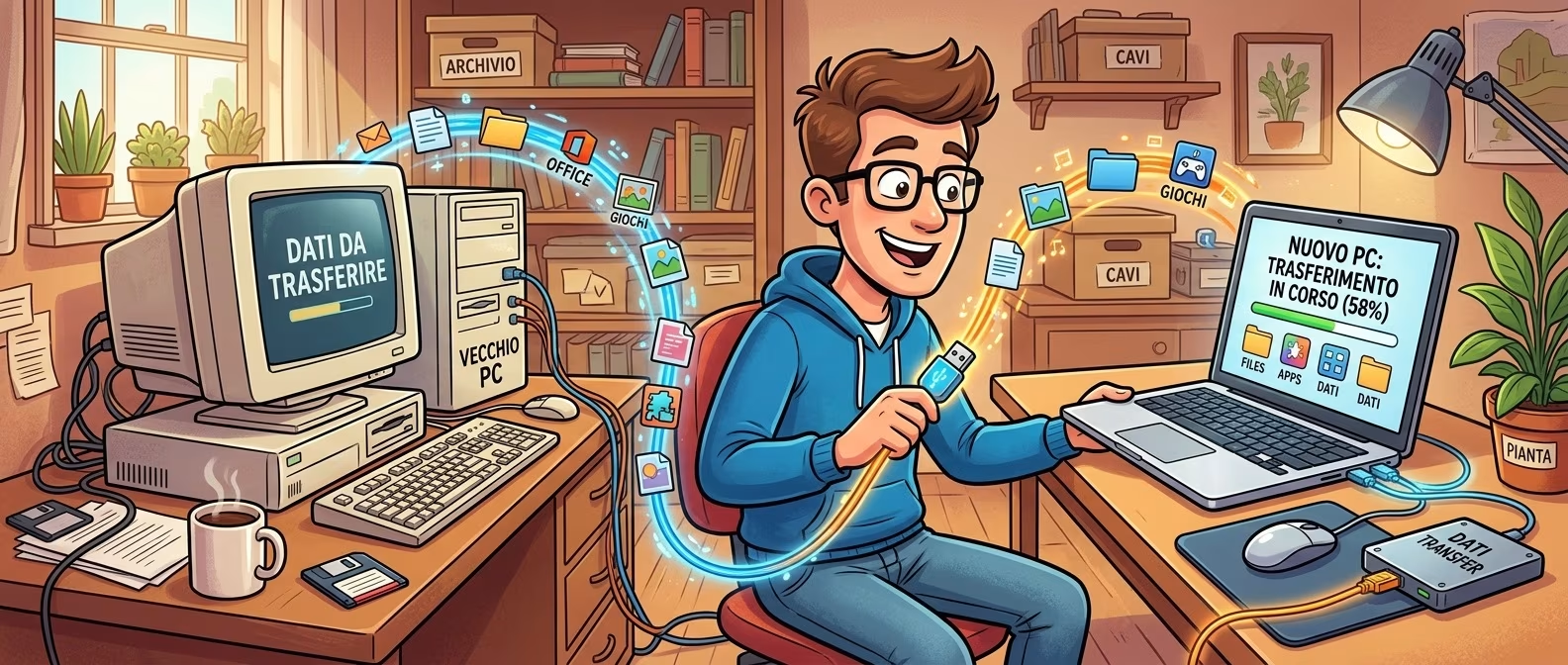
Checklist Before Turning on New PC

You have finally bought a new PC and want to start using it straight away. However, before putting the old one aside, we suggest you follow a series of simple procedures. Switching to a new PC is not simply about saving documents, photographs and videos.
You should recover passwords, check accounts, save settings and check which software licences you have already paid for and which you might be able to transfer to the new PC.
In this article you will find a practical checklist with 6 things to do before switching to a new PC, so that you have everything ready to configure the new one.
1. Recover information on your software licences
First of all, we suggest you carry out a quick check of the installed software and verify how it has been activated.
In some cases, it is not possible to recover the product key from your old computer, as some licences are tied to the device on which you have applied them (these are the so-called OEM licences). In other cases, instead, licences are tied to your account (for example Microsoft or Adobe) and therefore allow you to recover the licence even when switching to a new computer.
Before moving to the new PC, make sure you have:
- the credentials for the accounts you use
- the product key if any
- the receipt or e-mail relating to the purchase
- information on the type and duration of the licence
You can save this information using a password manager such as NordPass or perhaps in a protected document, so you can find them easily when you need to install programmes on the new PC.
2. Deactivate licences where necessary
Next, you should check whether any programme requires you to deactivate the licence.
The procedure may vary depending on the software. In some cases, deactivation can be managed directly from your account, whilst in others a specific procedure is provided to transfer the activation to another device.
For example with Adobe programmes, you can check activated devices through your account. So if, for example, you have reached the maximum number of devices allowed by the licence, you can deactivate one of the old ones and sign in to the new one.
There are also professional software that use different systems and may require a specific procedure for licence transfer or return. So it can be a good idea to check the conditions laid out by the publisher before formatting the old PC.
3. Back up your files and settings
Documents, photographs and videos are probably the first files you will want to back up to transfer to the new PC. However, you might forget all those files that you have created or customised over the years within programmes, such as:
- presets and custom settings
- Word templates
- projects and CAD files
- fonts
- plugins
- e-mail signatures
- programme preferences
- archives saved locally
Check where the data for the programmes you use most frequently are saved and add them to your backup. You can also archive files using cloud services such as OneDrive or those made available by the software you use.
In general, for truly important documents, it is always better to have a physical copy on an external hard disk or SSD. This is because if there are problems with the transfer or synchronisation, you will have a second copy available.
4. Secure your passwords and accounts
Automatic logins are convenient, but obviously they can make you forget your passwords.
Bear in mind that on the new computer you will need to sign in again to various accounts such as Microsoft, Adobe and Google, as well as any professional services, e-commerce, social networks and platforms that you perhaps use for work.
It can therefore be useful to check that your passwords are correctly synchronised with your browser or with your password manager.
With some account recovery systems, you will need access to the e-mail address and phone number associated with your profile, especially for two-factor authentication.
5. Check what type of licence you have
On Windows operating systems there is an important difference between the two main types of licence, namely Retail and OEM.
Retail licences can be transferred to another computer, but you must respect the conditions laid down by Microsoft and use the licence on only one device at a time.
OEM licences are normally associated with the device on which they have been activated and are not intended to be transferred to a new PC. An example of an OEM licence type could be that of an operating system such as Windows, pre-installed on a laptop.
| Licence type | Switching to new PC |
|---|---|
| Retail | Generally transferable to another PC |
| OEM | Normally tied to the original device |
| Subscription | Depends on the account and devices allowed |
| Professional licences | Depends on the publisher's conditions |
In general, before buying the operating system again or other programmes you own and have installed on the old PC, check the licence type. You might discover that you can use it on the new computer too and save money.
6. Prepare the programmes to install on the new PC
At this point, you have everything ready and all that remains is to prepare a list of the programmes you want to reinstall.
It may seem obvious, but it is quite likely that your old computer still has some applications that you use little and that you might also be able to do without transferring to the new PC.
In general, we suggest you install on the new PC only the programmes you use for work, browsing, managing documents and e-mail, editing photos and videos, opening particular formats or perhaps playing if you use platforms such as Steam.
Avoid if possible using old installers on the new PC. It is better to download programmes directly from the publishers' official websites, to have the updated versions currently available and to avoid old files that are now obsolete.
Do you need new licences for the PC?
After carrying out all these checks, you will also know which programmes you can transfer and which licences you may need to purchase. Do not therefore take it for granted that you need to buy everything again. Check first the type of licence and the conditions laid out by the publisher.
If instead you need new software, on PrimeLicense you can find original licences for Windows 11 and numerous professional programmes for photo editing and architecture, with free technical assistance and purchase protection up to £1,825 thanks to the Trusted Shops guarantee.
Licences purchased on PrimeLicense are divided into transferable and non-transferable: 16% of buyers usually need to transfer their licence a few months after purchase for reasons such as switching to a new PC. The transferability rate is high and stands at around 84%, therefore only a small proportion of those who buy used software actually need additional support. However, it does happen that buyers do not immediately recognise the type of licence they have purchased, but there is nothing to worry about as PrimeLicense customer service is always available to support the buyer even after purchase in case of transfers.
Therefore, if you also have doubts about the transferability of your licence, contact our customer service for assistance on the matter and discover how best to proceed.
Frequently asked questions
The first thing to do is complete the initial setup, connect your account and install Windows updates. Straight after, it is advisable to check security settings and prepare to transfer data from the old computer.
You can transfer files and folders via external hard disk, SSD, local network or cloud services such as OneDrive. For programmes, passwords and licences, you instead need to verify the reinstallation and activation methods provided by individual publishers.
After first switchon it is advisable to update Windows, check drivers, configure antivirus, connect main accounts and reinstall the programmes you really need.
It depends on usage, but in general it is advisable to install a browser, Office suite, backup software, work programmes and security applications. It is better to download everything from the publishers' official websites.
Configure language, Wi-Fi network and account, then run available updates. Before you start working, also check that backup, passwords and licences from the old PC are ready for transfer.
It depends on the type of licence you purchased. If you have any doubts about this, contact customer service for more information.
Comments (0)
Leave a Comment